mirror of https://github.com/lxndrblz/anatole.git

README.md
@@ -1,4 +1,4 @@ # Anatole  [](https://alexbilz.com/) # Anatole  [](https://alexbilz.com/) Anatole is a beautiful minimalist two-column [hugo](https://gohugo.io/) theme based on farbox-theme-Anatole. @@ -6,9 +6,10 @@ 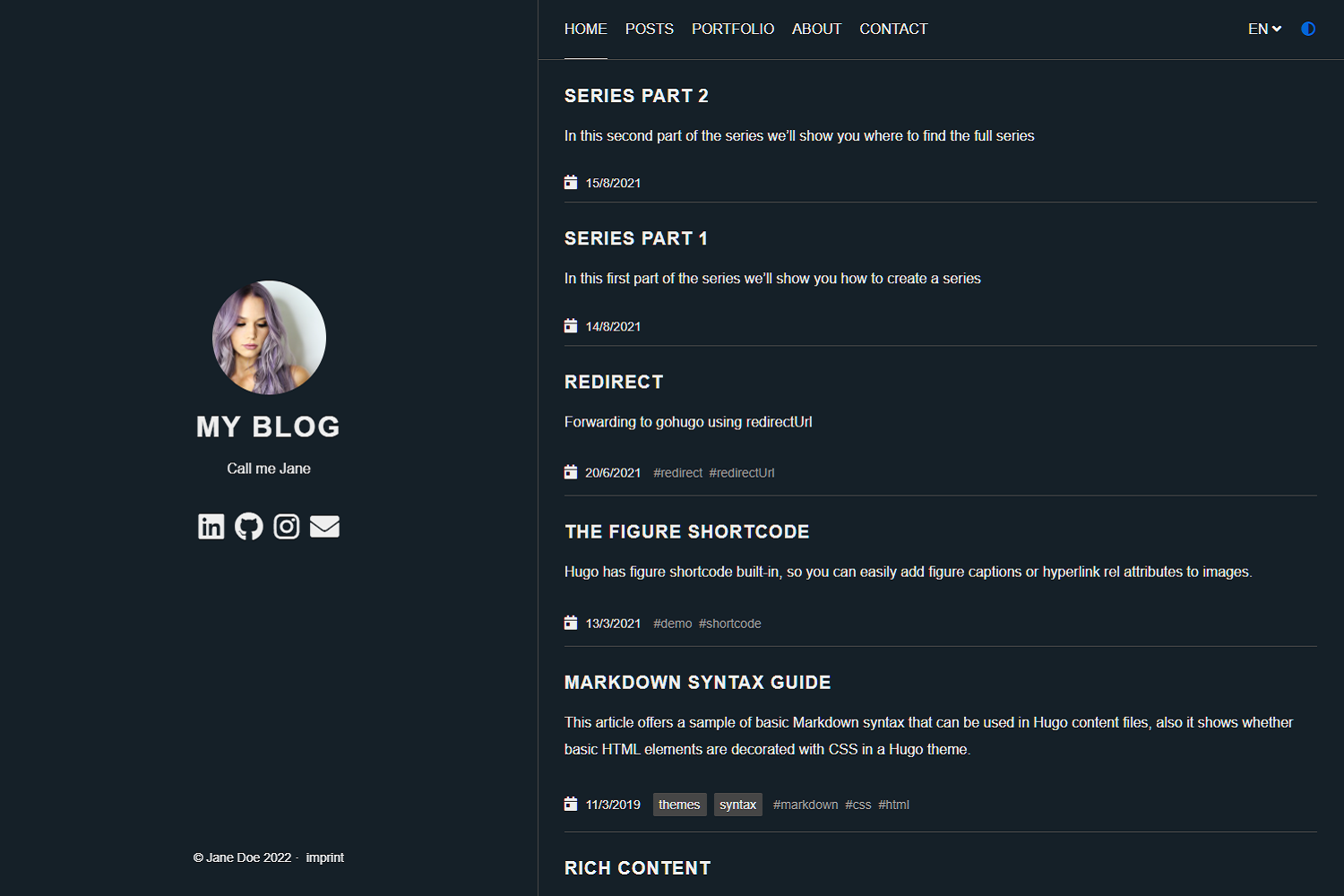 ## Features Anatole's aims to be minimalistic and sleek, but still brings some great functionality. ### Features include: ### Features include - Profile picture and slogan - Dark mode @@ -19,6 +20,7 @@ - Google Analytics (optional) - Comments powered by Disqus (optional) - Katex support (optional) - Formspree Contact Form (optional) - Twitter Cards support - MIT License - Fontawesome 5.15.1 icons @@ -30,27 +32,33 @@ - Uses Hugo pipes to process assets ## Preview the exampleSite ``` ```shell git clone https://github.com/lxndrblz/anatole.git anatole cd anatole/exampleSite hugo server --themesDir ../.. ``` ## Quick Start 1. Add the repository into your Hugo Project repository as a submodule: `git submodule add https://github.com/lxndrblz/anatole.git themes/anatole`. 2. Configure your `config.toml`. Feel free to copy the demo `config.toml` and some content from the exampleSite. 2. Configure your `config.toml`. Feel free to copy the demo `config.toml` and some content from the exampleSite. 3. Build your site with `hugo serve` and admire the result at `http://localhost:1313/`. ## Update your installation If you want to get the latest update of the `Anatole` theme please execute this command: ``` ```shell git submodule update --remote --merge ``` ## Modifying the config.toml Ìn this section I'll discuss the custom parameters available within the `config.toml`. The complete [sample](https://github.com/lxndrblz/anatole/blob/master/exampleSite/config.toml) can be found in the exampleSite folder. Ìn this section I'll discuss the custom parameters available within the `config.toml`. The complete [sample](https://github.com/lxndrblz/anatole/blob/master/exampleSite/config.toml) can be found in the exampleSite folder. ### Profile picture and slogan ```toml [params] title = "I'm Jane Doe" @@ -60,10 +68,13 @@ ``` ### Favicon Add you own favicon in `static/favicons/favicon.ico`. ### Navigation items Non-content entries can be added right from the `config.toml` file. ```toml [menu] @@ -85,17 +96,37 @@ identifier = "about" url = "/about/" ``` ### Prefer dark theme You can easily enable the dark mode from the `config.toml` all you have to do is to set the parameter `displayMode` to `dark`. If you dont specify any displayMode, then the light version will be loaded. Please also note that returning visitors will see the theme that was last displayed to them on your site. If your user has his system configured to dark mode, then this will also take presendence over the displayMode set in the `config.toml`. ```toml [params] displayMode = "dark" ``` ``` ### Disable Animations You can easily disable the animations from the `config.toml`. All you have to do is to set the parameter `doNotLoadAnimations` to `true`. ```toml [params] doNotLoadAnimations = true # Animations are loaded by default ``` ### Have a static page as a home page If you prefer having a static page as your home page rather than a listing of the latest posts, then make sure you leave the `mainSections` parameter blank: ```toml [params] mainSections = [] ``` Put any content into the `_index.md` file located in the content directory. If you want, you can also have some static text and the posts below. In such case, simply keep the `mainSections = ["post"]` and put any static content in the `_index.md`. ### Multilingual support Anatole supports multilingual page setups. All you need to do is to add the languages to your 'config.toml'. For each Language you can set the custom options like title or description. It's important to include a `LanguageName`, as it will be displayed in the main menu. Anatole supports multilingual page setups. All you need to do is to add the languages to your 'config.toml'. For each Language you can set the custom options like title or description. It's important to include a `LanguageName`, as it will be displayed in the main menu. ```toml [Languages] [Languages.en] @@ -109,7 +140,9 @@ weight = 2 LanguageName = "DE" ``` There are two ways of translating your content either by adding a suffix in the filename eg. `mypost.de.md` or by setting a contentDir (a certain directory) for each language. [Link to the Hugo documentation](https://gohugo.io/content-management/multilingual/). If you want to use the option with the `contentDir`, you will have to add the `contentDir` parameter for each language: ```toml [languages] [languages.en] @@ -117,7 +150,9 @@ languageName = "EN" weight = 1 ``` To make sure your menu is linking to the correct localized content, make sure that you customize the menu items to inlude the language prefix. Your menu might look like the following: ```toml [[Languages.de.menu.main]] url = "/de/" @@ -137,58 +172,83 @@ identifier = "about" url = "/de/about/" ``` Anatole currently ships with support for some basic languages. Contributions for other language translations are welcome. ### :100: Google Lighthouse score The theme is optimized to adhere to the requirements checked for in the Lighthouse Audit. On my [personal site](https://www.alexbilz.com) I was able to reach a perfect 100⁄100 score. 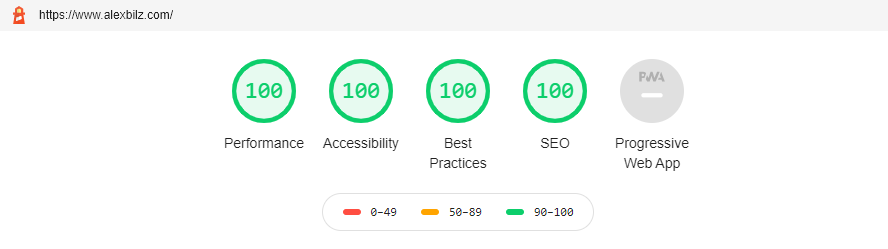 ### Comments powered by Disqus No comment section is shown on the `single.html`, unless a disqus code is specified in the `config.toml` file. ```toml disqusShortname = "XXX" ``` ### Google Analytics To use Google Analytics, a valid tracking code has to be added. If you don't want to load the code, then commend out the parameter. ```toml googleAnalytics = "UA-123-45" ``` ### Google Site Verification To use Google Site Verification, add the following line to the `[params]`: ```toml [params] googleSiteVerify = "ABCDEFGHIJKLMNOPQRSTUVWXYZ0123456789" ``` Replace the hash with the one Google provided you. ### Beautiful math functions ```toml ## Math settings [params.math] enable = false # options: true, false. Enable math support globally, default: false. You can always enable math on per page. use = "katex" # options: "katex", "mathjax". default is "katex". ``` ### Formspree Contact Form on the Contact page Step 1: Configure the `contactFormAction` in the `config.toml` ```toml [params] #contactFormAction = "https://formspree.io/f/your-form-hash-here" ``` Step 2: Activate the `contact: true` or `contact=true` in the frontmatter of a page. See the `exampleSite/content/contact.html` as an example. ### Twitter Cards support In order to use the full functionality of Twitter cards, you will have to define a couple of settings in the `config.toml` and the frontmatter of a page. In the `config.toml` you can configure a site feature image. This image will be displayed, if no image is defined in the frontmatter of a page. ```toml [params] images = ["images/site-feature-image.png"] ``` To define a custom image of a page, you might want to add the following to the frontmatter of a post. ```toml images = ["post-cover.png"] ``` ### Custom CSS You can add your custom CSS files with the `customCss` parameter of the configuration file. Put your files into the `assets/css` directory. ```toml customCss = ["css/custom.css", "css/styles.css"] ``` On the user-side it will look like this: ```text . └── assets @@ -196,13 +256,18 @@ ├── custom.css └── styles.css ``` ### Custom JavaScript You can add your custom JS files with the `customJs` parameter of the configuration file. Put your files into the `assets/js` directory. ```toml [params] customJs = ["js/hello.js", "js/world.js"] ``` On the user-side it will look like this: ```text . └── assets @@ -210,22 +275,28 @@ ├── hello.js └── world.js ``` `hello.js` and `world.js` will be bundled into a `custom.min.js`. You can also include links to remote javascript files (hosted on CDNs for example). But be aware, that integrity settings and minification won't be applied. Further make sure to adjust your CSP. You can load a remote script like this: ```toml [params] customJs = ["http://cdn.exmple.org/fancyscript.js"] ``` Both approaches can even be mixed: ```toml [params] customJs = ["https://cdn.exmple.org/fancyscript.js", "js/world.js"] ``` ### Content Security Policy The theme is compliant with most strict CSP policies out of the box. A sample CSP for an Anatole-based site would look something like this: ``` ```text Content-Security-Policy " base-uri 'self'; connect-src 'self'; @@ -238,8 +309,10 @@ style-src 'self' cdnjs.cloudflare.com; " ``` If you want to configure the security headers for a site running on Netlify, you want to make sure you create a special `_headers` file in your sites static folder. The content might look like the following: ``` ```text /* X-Frame-Options: DENY X-Clacks-Overhead: "GNU Terry Pratchett" @@ -249,34 +322,47 @@ Content-Security-Policy: base-uri 'self'; connect-src 'self'; default-src 'self'; frame-ancestors 'none'; font-src 'self' cdnjs.cloudflare.com; img-src 'self'; object-src 'none'; script-src 'self'; style-src 'self' cdnjs.cloudflare.com; Strict-Transport-Security: max-age=63072000; includeSubDomains; preload ``` ### Configurable pagination section You can configure the pages shown on the front page by altering the `mainSections` parameter: ```toml [params] mainSections = ["post", "docs"] ``` ### Robots.txt If you want Hugo to generate a robots.txt, you will have to set the `enableRobotsTXT` in the `config.toml` to `true`. By default a robots.txt, which allows search engine crawlers to access to any page, will be generated. It will look like this: ``` ```text User-agent: * ``` If certain sites shoud be excluded from being accessed, you might want to setup a custom robots.txt file within your `static` folder of your site. If certain sites shoud be excluded from being accessed, you might want to setup a custom robots.txt file within your `static` folder of your site. ### Syntax highlighting This theme has support for either Hugo's lightning fast Chroma code highlighting. See the [Hugo docs](https://gohugo.io/content-management/syntax-highlighting/) for more information. To enable Chroma, add the following to your site parameters: ``` ```toml pygmentsCodeFences = true pygmentsUseClasses = true ``` Then, you can generate a different style by running: ``` ```shell hugo gen chromastyles --style=monokailight > assets/css/syntax.css ``` If you get any errors, make sure the `assets/css/` directory exists within your sites root folder. Include the newly generated `syntax.css` like a standard custom css script: ``` ```toml [params] customCss = ["css/syntax.css"] ``` @@ -291,5 +377,5 @@ ## Special Thanks 🎁 * Go to [Cai Cai](https://github.com/hi-caicai), for the great Anatole Farbox theme that formed the foundation for this theme. * Go to [Kareya Saleh](https://unsplash.com/photos/tLKOj6cNwe0) for providing the profile picture in the exampleSite. - Go to [Cai Cai](https://github.com/hi-caicai), for the great Anatole Farbox theme that formed the foundation for this theme. - Go to [Kareya Saleh](https://unsplash.com/photos/tLKOj6cNwe0) for providing the profile picture in the exampleSite.